Why Most Companies Are Approaching AI Backwards (And How to Fix It)

Most companies buy an AI tool first and try to fit it into their business afterward. That order rarely works. The companies getting real value from AI start by mapping how work actually moves through their organization, then choose or build the technology that fits that map. Skip that step, and you end up paying for a tool that nobody trusts enough to use.

The Tool First Trap: Buying AI Before Fixing Workflow Architecture

It’s an easy trap to fall into. A leadership team hears about a new AI product, signs up for a demo, and rolls it out to the team within weeks. The tool looks impressive in a sales pitch because it’s been tested against a clean, simplified version of a business problem. Your business isn’t clean or simplified. It has legacy systems, inconsistent data entry habits, and workflows that live in three different people’s heads.

When the tool meets that reality, it either produces unreliable output or requires so much manual correction that it becomes another task on someone’s plate instead of a time saver. The technology wasn’t the problem. The sequence was.

3 Signs Your AI Investment Is Failing

A few patterns show up again and again when we talk to companies that are frustrated with their AI spend:


  1. Adoption stalls after the first month. Employees quietly go back to their old process because the AI tool creates more cleanup work than it saves.
  2. Nobody can explain what the tool actually does. If leadership can’t describe the specific business logic the AI is executing, the tool is running on guesswork rather than a defined process.
  3. The output needs constant human correction. Occasional review is healthy. Constant correction means the tool was never mapped to your real data and workflow in the first place.

If any of these sound familiar, the fix usually isn’t a different tool. It’s going back a step.

The Process First Framework: Mapping Business Logic Before Model Selection

Before we recommend any AI model or platform to a client, we ask a more basic set of questions. What does this process look like today, step by step? Where does the data live, and how clean is it? Which parts of this process require human judgment, and which parts are just repetitive rules that a computer could apply consistently?

That audit produces a map of the workflow as it actually runs, not as it’s described in a training manual. Only once that map exists does model or platform selection become a straightforward decision, because you’re now matching a known problem to a known solution instead of hoping a general purpose tool happens to fit.

Sometimes the Answer Isn’t AI at All

This comes up more than people expect: not every problem that gets labeled an “AI problem” actually is one. A business will come to us convinced they need an AI tool, when what’s really slowing them down is a process that was never automated in the first place, like a form that still gets filled out by hand, two systems that don’t share a database, or a report that takes someone half a day to assemble because nobody ever wrote a script to pull the numbers automatically.

None of that requires a language model. It requires custom software: a straightforward piece of code that does a defined task the same way, every time, without judgment or interpretation involved. Adding AI to a problem like that doesn’t make it faster. It usually makes it more expensive and less predictable, since you’re paying for a flexible, judgment based tool to do a job that only needed consistency.

Part of the process first audit we run with every client is figuring out which of these two categories a problem actually falls into. If the task involves genuine ambiguity, language, or judgment calls, AI is worth exploring. If the task just needs to happen reliably and automatically, plain custom software is usually the faster, cheaper, and more durable fix. Getting that distinction right up front is often what separates a project that pays for itself in months from one that never quite delivers what was promised.

Custom Integration vs. Off the Shelf AI Wrappers

A lot of what’s marketed as an “AI solution” is a thin interface wrapped around a general purpose model, connected to your systems through a handful of basic triggers. It can work for simple, low stakes tasks. It tends to break down once your business logic has real complexity: approval chains, conditional pricing, compliance rules, or data that needs to move between systems that were never designed to talk to each other.

Custom integration means building the connective layer between your existing software and the AI model so the two actually understand each other. An AI tool that only answers generic questions is a different product entirely from one that knows your inventory rules, your client history, and your internal terminology well enough to be trusted with real work. We’ve also found it’s more affordable than most businesses assume, especially set against the cost of a tool that never gets fully adopted.

Where This Fits Into How We Work Now

A lot of what’s written about AI right now comes from people theorizing about where things are headed. We’re in a different position: we’re using AI daily to deliver work for clients, and it’s changing how we operate in real time.


The biggest shift for us hasn’t been replacing people with AI. It’s been freeing our team from the repetitive parts of the job so they can spend more time understanding a client’s real problem, building the relationship, and staying close enough to a project to catch issues before they get expensive. We try to bring that same principle to client work: AI should make the service better, not just cheaper, and it shouldn’t be the first purchase before the process is understood.

If you want to see how this plays out in practice, we’ve written about what it looks like when AI becomes a genuine coworker rather than a bolt on tool, and where AI can support expertise without replacing it. If you’re weighing whether your own systems are ready for this, our AI integration services page walks through how we approach that first audit with clients.

FAQ

How do I know if my business is ready for AI? Readiness has less to do with your industry or size and more to do with whether your core processes are documented and your data is reasonably clean. If neither is true yet, that’s the starting point, not a reason to wait indefinitely.

Is custom AI integration more expensive than buying an off the shelf tool? The sticker price on an off the shelf subscription is usually lower up front. Once you factor in the staff hours spent working around its limitations, a properly scoped custom integration is often the more affordable option over time.

How long does an AI readiness audit take? For most mid-sized businesses, a thorough process and data audit takes a few weeks, not months. The goal is a clear map you can act on, not an open ended research project.

How do I know if I actually need AI, or just custom software? 

We’ve spent 30 years building software for businesses that just want it to work, AI included. If you’re not sure whether your business needs AI, custom software, or a mix of both, that’s exactly the kind of question we like to start with. Reach out for a quote or a quick meeting, no pressure, just an honest conversation about whether we’re the right fit for what you’re trying to build.


WooCommerce Caching Done Right: Speed Without Breaking the Cart

Caching is one of the simplest ways to make a website faster, and on a typical WordPress site, the rule is pretty much “cache everything you can.” WooCommerce is where that advice falls apart. Cache the wrong page on an online store and you might show the wrong cart to the wrong customer, break a coupon code, or turn your checkout into a mystery for the person trying to give you money.

Done right, caching makes a WooCommerce site genuinely fast. Done carelessly, it quietly costs you sales. Here’s how we think about it, with one important caveat: every WooCommerce store is a little different. The guidance below is a strong starting point, but the right configuration always depends on the plugins, integrations, and custom functionality your specific site uses.

Why WooCommerce Caching Isn’t Like Regular WordPress Caching

A regular WordPress site mostly serves the same content to every visitor. A blog post looks the same whether you’re a first-time reader or a longtime subscriber. That makes it perfect for caching, since you can store one version of the page and serve it to everyone.

WooCommerce is different. Your storefront has pages that change based on who’s looking at them. A cart is unique to each visitor. A logged-in customer sees different prices, account details, or recommendations than a new visitor. Multi-step forms remember what someone entered three minutes ago.

If your caching setup doesn’t know the difference between a static product description and a dynamic cart page, things break. We’ve inherited sites where the previous host was serving the same cart contents to every visitor for hours at a time. Not great.

What You Should Cache (the Easy Wins)

Plenty of WooCommerce pages benefit from aggressive caching with no risk:

  • Product pages for visitors who aren’t logged in
  • Category and shop pages with standard sorting
  • Blog posts and informational pages
  • Images, CSS, and JavaScript files, which should be cached hard and served through a CDN
  • Homepage and landing pages

These pages generally look the same for everyone until a visitor adds something to a cart or logs in, so caching them is usually a free speed boost. Keep in mind, though this is a general rule of thumb. Depending on your client’s specific setup, custom features, or dynamic content, exceptions can apply. It’s always worth double-checking with your web team before locking in aggressive caching rules!

What You Should Never Cache (the Critical Exclusions)

This is where most setups go wrong. Some pages must always be served fresh:

  • Cart and checkout pages. Every visitor has their own cart. Caching it means showing one customer another customer’s items.
  • My Account pages. Order history, saved addresses, and account details are private to each user.
  • Multi-step forms with “save and continue later” functionality. If the form caches, your customer comes back to a blank page instead of their saved progress.
  • AJAX requests for cart updates, fragments, and mini-carts. These power the little “added to cart” notifications and counter badges.
  • Coupon and discount logic. If a coupon caches, you might apply it to the wrong order or miss it entirely.
  • Logged-in user sessions. Anyone who’s signed in should see fresh content, period.

Tools like the LiteSpeed Cache plugin handle most of this automatically when configured for WooCommerce, but the defaults aren’t perfect. Every store has its own quirks, especially when custom plugins or custom programming are involved.

How Cloudflare and LiteSpeed Work Together

For most of our managed sites, we run Cloudflare in front of LiteSpeed. The two layers do different jobs.

Cloudflare handles edge caching for static assets and pages that can be safely served globally. LiteSpeed handles page caching at the server level, with smart rules that know which WooCommerce pages need to bypass the cache entirely.

When the two are set up to talk to each other properly, a returning visitor gets a page in milliseconds, but a shopper in the middle of checkout gets fresh content every time. When they’re not set up properly, you get the worst of both worlds.

If you ever push out an update and aren’t seeing it on the site, our quick guide on how to clear cache in Cloudflare walks you through it step by step. For a broader look at WooCommerce speed optimization, our post on optimizing WooCommerce for lightning-fast performance is a good companion read.

How NDIC Handles This for Clients

Every WooCommerce site we build or migrate onto our managed WordPress hosting gets a caching configuration tuned for it specifically. We test the cart, the checkout, the account pages, and any custom forms before launch to make sure nothing is cached that shouldn’t be. For sites with unusual functionality, our web design and development team works alongside our programmers to write custom cache rules.

That tuning matters because no two WooCommerce sites cache the same way. A simple store with five products and standard checkout is a very different setup from a multi-vendor marketplace with subscriptions, dynamic pricing, and a save-and-continue quote form. What works beautifully on one can quietly break the other.

If your WooCommerce site feels slower than it should, or if you’ve ever had a strange cart issue you couldn’t explain, reach out. We’ll take a close look at your specific setup before recommending anything. Sometimes the fix is a single line in the cache config. Sometimes it’s a bigger rebuild. Either way, we’ll tell you straight.

When AI Is Your Coworker, What Happens to 40 Hours?

For decades, the standard workweek has remained surprisingly consistent. Most salaried employees are expected to work around 40 hours a week, regardless of how much technology has changed around them. Computers, email, smartphones, cloud software: every major leap promised more efficiency, and yet most of us still work roughly the same number of hours we always have.

AI may be different. As it becomes less of a novelty and more of an actual coworker, businesses are starting to ask a question that’s rarely come up before. If AI can complete part of an employee’s work, do we still need 40 hours from that employee every week? We touched on the idea of AI as a coworker in an earlier post, and this is the question that naturally follows.

The New Productivity Equation

Today, AI can draft emails, summarize meetings, generate reports, write code, analyze data, and automate a long list of repetitive tasks. A project manager who once spent hours building status reports can now generate them in minutes. A customer service rep can handle far more inquiries with AI assisted responses. A developer can build and troubleshoot code faster than before. A marketer can research, write, and analyze performance in a fraction of the time it used to take.

None of this necessarily means people become less necessary. In most cases, it means people become dramatically more productive in the same amount of time. That’s a good thing, but it raises an obvious follow up question for employers.

The Question Businesses Are Starting to Ask

Most of the public conversation about AI focuses on whether it will replace jobs outright. The more immediate, practical question sitting underneath that is different: how many human hours are actually still needed once AI is handling the repetitive parts of the work?

Historically, companies staffed up because the volume of work demanded a certain number of hours. That math is shifting. Instead of asking “how many employees do we need,” businesses may increasingly ask “how many human hours do we actually need.” It’s a subtle shift, but it changes how a company plans, hires, and budgets.

The Rise of Human Plus AI

The organizations that come out ahead here probably won’t be the ones that try to replace people with AI outright. They’ll be the ones that pair human expertise with AI to build teams that are genuinely more productive than either could be alone.

In that model, the real competition isn’t humans against AI. It’s Human plus AI against Human without AI. A skilled employee using AI well can often outperform someone relying entirely on the old way of doing things, and plenty of businesses are already seeing this play out. We see a version of the same pattern in our own work: pairing AI with an experienced developer builds software faster without sacrificing quality, which is a big part of what we outlined in how we use AI to build software faster. The judgment still comes from a person. The speed increasingly comes from the tools that person knows how to use.

Could Hourly and Contract Work Increase?

As AI keeps improving productivity, companies may grow more comfortable paying for outcomes instead of hours. Picture a business that once needed a full time employee putting in 40 hours a week. If AI trims that workload down to 15 or 20 hours, the company has a few options: keep the role salaried as is, reduce headcount, bring in specialized contractors, or rely on part time experts supported by AI tools for the rest.

For some industries, this could speed up an existing shift toward project based work and more flexible staffing. Rather than hiring a full time specialist, a company might increasingly bring in expertise only when it’s needed, while AI handles the day to day operational load in between.

Or Will Expectations Simply Rise Instead?

There’s another, equally likely outcome. Instead of shorter hours, businesses may simply expect more output within the same 40. History gives us reason to think this is the more probable path. Email made communication faster, and expectations rose to match. Smartphones kept us constantly reachable, and responsiveness expectations rose too. Cloud software sped up collaboration, and project timelines compressed accordingly.

AI may follow the same pattern. Rather than working fewer hours, employees may simply be expected to accomplish more inside the hours they already work. Which outcome wins out will likely depend heavily on the industry, the role, and how deliberately a company chooses to handle the shift rather than letting it happen by default.

What This Means for Workers

The most valuable professionals in an AI powered workplace probably won’t be the ones trying to outpace AI at its own strengths. They’ll be the ones who’ve learned to work alongside it. AI can generate content, but humans provide the context that makes it useful. AI can analyze data, but humans still make the actual decisions. AI can automate tasks, but humans are the ones who build trust, relationships, and strategy, none of which a tool can do on its own.

The future likely belongs to people who treat AI as a way to amplify their own expertise, not a replacement for it. That distinction matters just as much for a business evaluating whether to bring AI into its own operations as it does for an individual employee.

The Future of the Workweek

No one can say with certainty what the workweek looks like ten years from now. But one thing is becoming clear: AI is changing the relationship between time and output in a way most previous technology never quite managed to. For the first time, businesses can realistically picture achieving the same results with meaningfully fewer human hours.

Whether that leads to shorter workweeks, more contract based work, smaller core teams, or simply higher expectations remains to be seen, and it will likely look different from one industry to the next. The real question may not be whether AI replaces jobs. It’s whether AI quietly redefines what a full time job even means in the first place.

If your business is trying to figure out where AI actually fits into your own operations, rather than just reacting to the headlines, that’s a conversation we have with clients regularly. You can see the kind of work we typically build in this space through our AI solutions page, or read more of our thinking on the topic in AI driven websites: buzzword or business advantage.

AI-Driven Websites: Buzzword or Business Advantage

People throw the phrase “AI-driven website” around a lot lately, and it’s starting to sound like one of those marketing terms that means everything and nothing at the same time. For some companies, it’s just a chatbot in the corner. For others, it’s a complete rebuild of how a website thinks, searches, and serves the people visiting it.

So which is it? Buzzword or business advantage? The honest answer is that it can be either, depending entirely on how it’s done. And the businesses figuring out the difference over the next year or two are going to have a real edge over the ones still treating their site like a digital brochure.

So What Counts as an AI-Driven Website?

An AI-driven website is one where artificial intelligence shapes the experience in ways visitors can actually feel. That might mean a search bar that understands what someone meant rather than just what they typed. It might mean product recommendations that adjust based on browsing patterns. It might mean an assistant that answers questions, books appointments, or helps a customer pick a plan without making them wait for a human.

The key phrase there is “shapes the experience.” Just having an AI tool installed doesn’t make a site AI-driven, any more than owning Microsoft Word makes you a novelist. The site has to use AI in a way that genuinely changes outcomes for visitors and for the business behind it.

We unpacked some of this distinction in our piece on AI agents vs. LLMs, which is worth a read if you want to go a layer deeper on the technical side.

Where AI Is Actually Useful on a Website

Here’s where things get practical. AI can do a lot, but only some of it pays off for most businesses. The places we see real results:

Smarter search and navigation. Visitors don’t want to click through five menus to find a product. AI-powered search handles natural language, typos, and synonyms gracefully.

Conversational support. A well-built AI chat or assistant can handle the repetitive questions that eat up your team’s time, while flagging the ones that genuinely need a human.

Personalization. Showing the right products, the right blog posts, or the right service pages based on who’s visiting and what they’ve looked at before.

Content workflows. Behind the scenes, AI speeds up the work of drafting product descriptions, writing SEO metadata, and keeping content fresh.

Accessibility improvements. Auto-generated alt text, real-time translation, and adaptive layouts that make sites more usable for more people.

Why This Matters Right Now

Two things have shifted recently that make this conversation more urgent than it was even a year ago.

First, customer expectations changed. People who use ChatGPT every day come to your website expecting a similar quality of interaction. A clunky contact form feels older now than it did before.

Second, search itself is changing. Google’s AI Overviews, Perplexity, and ChatGPT search are reshaping how people find businesses online. Sites that are structured well, written clearly, and integrated thoughtfully with AI tend to surface more often in those results. The ones that aren’t get quietly skipped over.

If you want a closer look at how your site shows up in this new search landscape, our post on your website’s new AI coworker covers it well.

Where Most AI-Driven Websites Go Wrong

The honest version: a lot of AI implementations we’ve seen lately are worse than no AI at all. Chatbots that hallucinate prices. Copy that sounds confident but gets details about the business wrong. SEO “optimization” that makes pages rank for terms the business doesn’t even sell.

We wrote about this directly in AI can support your website, but it can’t replace real expertise. The short version is that AI works best when someone with judgment is steering it. Otherwise, it tends to amplify whatever assumptions it was given, including the wrong ones.

How NDIC Builds AI Into Websites

At NDIC, AI shows up in our work in a few different ways. Our web design and development team uses AI to move faster on layouts and content, but every decision still gets a human eye. Our custom programming team builds integrations that connect AI to the systems your business actually runs on, whether that’s a CRM, an inventory tool, or a custom database. And once a site is live, our managed WordPress hosting keeps the whole stack secure, fast, and ready for whatever comes next.

We’re not interested in adding AI for the sake of saying we did. We’re interested in making your website work harder so your team doesn’t have to.

If you’ve been thinking about what AI could do for your site, or you’re not sure where to start, get in touch. It’s a good conversation to have before the gap between AI-driven sites and the rest gets any wider.

Why 301 Redirects Matter More Than You Think

Most business owners don’t think about redirects until something breaks; a customer complaint about a dead link, a sudden drop in Google traffic, or a developer mentioning them mid-migration. But 301 redirects are one of the quietest, most important tools in keeping a website healthy. Done right, no one notices them. Done wrong, you can lose years of SEO work overnight.

Here’s why they deserve more attention than they usually get.

What a 301 Redirect Actually Does

A 301 redirect tells browsers and search engines that a page has permanently moved from one URL to another. The visitor lands on the new page automatically. More importantly, search engines transfer the authority  (the ranking power, the backlinks, the years of trust) from the old URL to the new one.

The “301” is just a status code. The work it does behind the scenes is enormous.

Why 301s Are Critical During a Website Migration

If you’re moving platforms, say from Magento to WooCommerce, or from an old custom site to WordPress,  almost every URL on your site is about to change. Without a proper redirect map, every old link to your store, every product page indexed by Google, and every blog post shared on social media becomes a 404.

That’s not just bad user experience. It signals to search engines that your site has disappeared. Rankings drop. Traffic vanishes. Customers who bookmarked your pricing page hit a dead end.

We go deeper into this in our post on the top five challenges of website migration, but the short version is this: a careful 301 redirect strategy is often the single biggest factor in whether a migration preserves your SEO or wipes it out.

Why They Matter Even When You’re Not Migrating

Redirects aren’t just a migration tool. They’re an ongoing part of running a healthy website.

Every time you rename a blog post, restructure a navigation menu, retire an old service page, or merge two products into one, you create a URL that used to work and now doesn’t. A 301 redirect catches that and sends both the visitor and Google somewhere useful.

Without them, your site slowly accumulates broken links. Visitors hit 404 pages. Internal links break. Your overall website health degrades quietly until one day you notice organic traffic has been sliding for months and no one is sure why.

Where 301 Redirects Go Wrong

A few common mistakes we see all the time:

  • Redirect chains. Page A redirects to B, which redirects to C. Search engines penalize it, and it slows down your site.
  • Using 302 (temporary) instead of 301. A 302 tells Google the change is temporary, so no authority gets passed along.
  • Pointing everything to the homepage. It’s tempting, but it signals that your old pages weren’t relevant. Always redirect to the closest matching page.
  • Forgetting to update internal links. Redirects work, but direct links are faster and cleaner. Update them when you can.

These are the kinds of details our custom programming and web design and development teams catch before they turn into problems.

How NDIC Handles Redirects

For migration projects, we build a complete URL-to-URL redirect map before launch and test it thoroughly after.

When we build or redesign a website, we include training that shows clients how to add their own redirects whenever they need to.

And for our regular maintenance clients on managed WordPress hosting, we’re happy to step in whenever something comes up, whether that’s identifying broken links or adding missing 301s.

If you’re planning a redesign, switching platforms, or just want a second set of eyes on your current redirects, get in touch. It’s a small piece of technical work that protects a very large part of your business.

Magento to WooCommerce Migration, Done Faster with AI

*”Magento™ and WooCommerce™ are trademarks of their respective owners.

Most Magento store owners we talk to aren’t asking if they should leave Magento anymore. That decision has usually already been made, somewhere between the third invoice from a developer and the fourth “urgent” security patch. The real question they bring to us is sharper: “How long is this going to take, and how badly is it going to hurt my business while it happens?”

That’s a fair question. And honestly, the answer used to be: “longer than you’d like, and a bit.” Migrations are messy. Product catalogs don’t transfer cleanly. URLs break. Customer accounts get mangled. SEO rankings drop while everyone scrambles to redirect 4,000 product pages by hand.

That’s not the answer we give anymore. At NDIC, we’ve rebuilt our Magento to WooCommerce migration process around AI agents and smart integrations and the difference isn’t a minor speed bump. It’s a different category of project.

Why Migrations Got So Painful in the First Place

Before we get into the AI part, it’s worth being honest about why Magento exits are notoriously rough. Magento’s data structure was built for complexity: multi-store views, layered attribute sets, EAV database models that even seasoned developers groan about. Exporting that data and reshaping it for WooCommerce is the digital equivalent of unpacking a U-Haul that someone packed while annoyed.

If you’re still weighing whether the move is worth it, our earlier posts cover the financial and operational side in depth: how much Magento is really costing your business, the five reasons business owners decide to leave Magento behind, and a side-by-side comparison of Magento, WooCommerce, and Shopify. This article isn’t about why — it’s about how we do it faster.

Where AI Agents Actually Earn Their Keep

We’re skeptical of AI buzz too. So here’s what we mean specifically when we say AI agents speed up your migration. These aren’t chatbots. They’re purpose-built scripts and language-model-driven workflows that handle the parts of a migration that used to eat developer hours by the dozen.

1. Data mapping and cleanup. Magento attribute sets rarely map one-to-one with WooCommerce product fields. Historically, a developer would sit with a spreadsheet and decide where each attribute lands. We now use AI agents to read your exported catalog, propose a mapping, flag inconsistencies (duplicate SKUs, abandoned attributes, miscategorized products), and produce a clean import file. A human team member reviews the output, but instead of building the map from scratch, they’re approving and refining one. That alone can shave weeks off a large catalog migration.

2. Content rewriting and SEO preservation. Product descriptions written for Magento often need light reformatting for WooCommerce’s editor and your new theme. AI agents handle the bulk reformatting, preserve internal links, and generate updated meta descriptions where the originals were thin or missing. Combined with a proper 301 redirect map (also AI-assisted, also human-reviewed), this is how we protect the organic traffic you’ve spent years building.

3. Image optimization at scale. A Magento store with 5,000 products often carries 20,000+ images, many of them oversized PNGs from a 2017 photographer. Our automated pipeline resizes, compresses, converts to WebP, and renames them with SEO-friendly slugs, work that used to be billed hourly is now done overnight.

4. Integration reconnection. Your store talks to a lot of things: shipping platforms, accounting software, email marketing, inventory systems, payment processors. AI agents help us audit those integrations, identify which have direct WooCommerce equivalents, and configure the new connections, often using the same APIs but through more efficient WordPress-native plugins.

What Doesn’t Change: The Human Part

We want to be a leader in using AI well, not a cautionary tale about using it badly. So here’s where we still rely entirely on people: strategy, design, judgment calls, and the relationship we build with you.

Take the storefront redesign. Migrating is the perfect moment to improve your store’s look and flow rather than rebuilding the same old experience, and those creative decisions come from our web design and development team — not from a model. When something genuinely custom is needed, like a complex pricing rule or a B2B portal that Magento was holding together with three plugins, our custom programming team builds it the right way. And if you choose to stay with us on one of our managed WordPress hosting plans, your store is backed up daily and monitored around the clock — so you’re not the one finding out at 2 a.m. that something broke.

The AI handles the volume work. We handle the decisions.

What This Looks Like in Practice

Here’s a version that drops the specific numbers and leans into a quote request instead:

Every migration is different. A boutique store with a few hundred products and two integrations is a very different project from a catalog of 10,000 SKUs wired into an ERP, so we don’t believe in one-size-fits-all timelines or canned estimates. What we can tell you is that AI agents now handle a large share of the work that used to be slow and manual, which means most projects move noticeably faster, and the AI-assisted QA catches mismatched data, broken links, and orphaned products before they ever reach your customers.

If you’re still earlier in your thinking, our breakdown of WooCommerce vs. Magento value is a good companion read. And when you’re ready to talk specifics, get in touch and we’ll put together a quote tailored to your store, your catalog size, your integrations, your timeline.

The first conversation is just a conversation. We’ll tell you honestly what AI can speed up, what still needs the human touch, and what your migration would actually involve.

Your Website’s New AI Coworker: Are You Ready?

Most conversations about AI and websites focus on one of two things: how AI is changing search results, or how businesses can use AI tools to save time. Both are worth talking about. But there’s a third angle that often gets overlooked and it’s the one that actually determines whether your website grows your business or just sits there looking pretty.

It’s not about whether your website uses AI. It’s about how well your website and AI work together.

Think of it like hiring a new employee. You wouldn’t hand someone the keys on day one without onboarding them, setting expectations, or giving them the right tools. Yet that’s exactly what most businesses do when they bolt on a chatbot, add an AI plugin, or let an automated tool tinker with their content. The result? A disjointed experience that frustrates visitors instead of converting them.

Let’s talk about what a well-integrated AI-powered website actually looks like, and why getting there requires more than just flipping a switch.

The “AI Layer” vs. the “AI Foundation”

There’s a big difference between layering AI onto a website and building a website with AI in mind from the start.

A layered approach might look like this: you have a WordPress site, and someone suggests adding an AI chat widget. You install a plugin, connect it to a third-party service, and now there’s a little chat bubble in the corner of every page. It answers basic questions — sometimes correctly, sometimes not — and nobody’s quite sure if it’s helping or hurting.

An AI foundation looks different. It starts with questions like: What are the most common reasons people visit this site? Where do they get stuck? What information do they need before they’ll pick up the phone or fill out a form? Then, AI tools are designed around those specific behaviors — not dropped in as an afterthought.

For example, a local service business might integrate a custom AI assistant that’s been trained on their actual services, service area, FAQs, and pricing structure. Instead of generic answers, it gives real ones. That’s a meaningful difference in user experience — and in the number of leads that turn into customers.

What “Working Together” Actually Means

When a website and AI are genuinely integrated, several things happen simultaneously:

The site gets smarter over time. AI tools can analyze how visitors move through your pages, which content gets engagement, and where people drop off. That data feeds back into design and content decisions — not in a generic way, but in ways specific to your audience. This is something we explore in depth in our post on how to transform your website to work smarter with AI solutions.

Content stays relevant without constant manual updates. For businesses that rely on managed WordPress hosting, this is a meaningful upgrade. AI-assisted content tools can flag outdated pages, suggest updates based on search trends, and help maintain the kind of fresh, authoritative content that search engines reward.

SEO works with the AI ecosystem, not against it. This is increasingly important. As we covered in SEO in the Age of AI: How to Stay Visible When Clicks Decline, AI-driven search is changing the way people find information. Sites that are structured for clarity, depth, and authority are the ones that get surfaced — whether in a traditional search result or an AI-generated answer. A well-integrated site makes both possible.

Custom programming makes it seamless. Off-the-shelf plugins can only take you so far. When AI needs to talk to your CRM, your booking system, your inventory database, or your customer support workflow, you need custom-built connections. That’s where thoughtful programming turns an AI feature from a gimmick into genuine infrastructure.

A Quick Reality Check

Here’s something we say to our clients often: AI is only as useful as the system it’s plugged into.

A chatbot connected to a poorly organized website will give confusing answers. An AI content tool working with thin, generic copy will produce more thin, generic copy. An automated SEO tool without human oversight will optimize for the wrong things at the wrong time. As we wrote in AI Can Support Your Website, But It Can’t Replace Real Expertise, the human layer — strategy, judgment, context — is what makes the difference.

This is why the “AI coworker” metaphor matters. A great coworker makes you more effective. A poorly onboarded one creates more work. The same is true here.

Where to Start

If your website is running on WordPress and you’re not sure where AI fits in, start small and specific. Pick one friction point, maybe it’s answering the same five questions your sales team gets on every call, or helping visitors find the right service page faster, and build toward solving that one thing well.

From there, the foundation for something smarter is already in place.

The businesses getting the most out of AI-integrated websites aren’t the ones who’ve added the most AI features. They’re the ones who’ve been thoughtful about which problems they’re actually trying to solve — and who’ve built (or partnered with someone to build) a system that fits.

That’s the difference between a website that works and one that works with you.

Ready to find out what a well-integrated AI approach could look like for your site? Let’s talk.

Web Accessibility: 8 Best Practices to Meet ADA & WCAG

Most businesses understand that website accessibility matters. But here’s the reality:

Accessibility isn’t a one-time fix. It’s something you maintain.

As your website evolves—new pages, new images, new content—it’s easy for accessibility standards to slip without even realizing it. And while tools and plugins can help, they don’t replace thoughtful, ongoing practices.

In fact, as we explored in our recent post on Digital Accessibility: Why Website Plugins Aren’t Enough, relying solely on automation can leave significant gaps in your user experience.

Think of your website like a building. The accessibility ramp, the wide doorways, the elevator — those get installed once. But if someone parks a delivery cart in front of the ramp every week, the building stops being accessible. Your website works the same way. Compliance requires consistent habits, not just a one-time setup.

The good news? The habits themselves aren’t complicated.

8 Simple Accessibility Best Practices You Can Apply Today

Accessibility isn’t just about compliance, it’s about usability for everyone. That includes:

  • Users navigating with screen readers
  • Visitors on mobile devices
  • People with visual or cognitive differences
  • Anyone trying to quickly find information

Here are the key areas to focus on when updating your website:

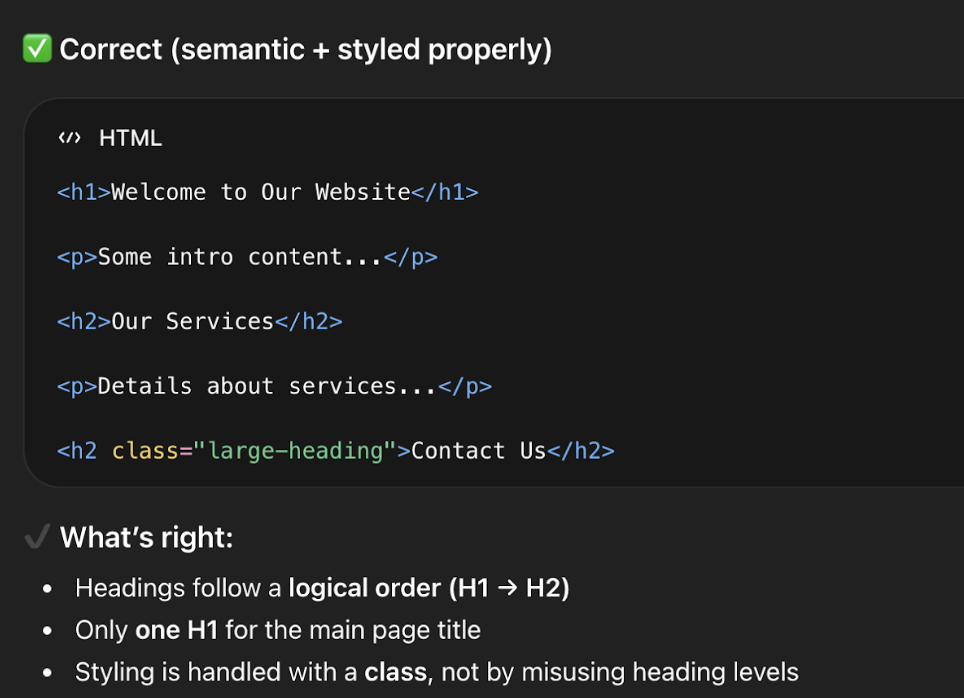
1. Use Clear Heading Structure

Screen readers and search engines both rely on your heading hierarchy to understand what a page is about and how it’s organized.

  • Use one H1 per page (your main title)
  • Use H2s and H3s to organize sections
  • Avoid skipping levels (e.g., jumping from H1 to H4)

👉 Think of headings like an outline, not just styling.

Correct heading structure for SEO and ADA

2. Color Contrast: Make Sure Your Text Is Easy to Read

Accessibility guidelines require a minimum contrast ratio between text and background. This matters most for users with low vision or color blindness, but — if you’ve ever tried to read grey text on a white background on a bright day — you know it benefits everyone.

The most common places contrast slips: link colors on colored backgrounds, button text, footer copy, and text overlaid on images. Any time you update your color scheme or add a new banner, run it through WebAIM’s Contrast Checker — free and takes ten seconds.

Even subtle color changes can make a big difference in usability.

3. Add Meaningful Alt Text to Images

Alt text is the description attached to an image that screen readers read aloud. It’s also what search engines index when they can’t “see” your images — making it both an accessibility and SEO win.

Good alt text describes what the image communicates, not just what it shows:

  • Good: “Download the 2024 grant application form”
  • Not helpful: “Image of form”
Alt text on images

4. Use Descriptive Text Links

Screen reader users often navigate a page by jumping between links. If every link says “Click here” or “Read more,” that navigation is meaningless.

Descriptive link text also matters for LLM-driven search: AI tools indexing your site use link text as signals for what a destination page contains. “Download our services brochure” gives far more context than “click here.”

Easy upgrades:

  • “Click here” → “View our web design services”
  • “Read more” → “Read our guide to ADA compliance”

Clear links improve both accessibility and SEO performance.

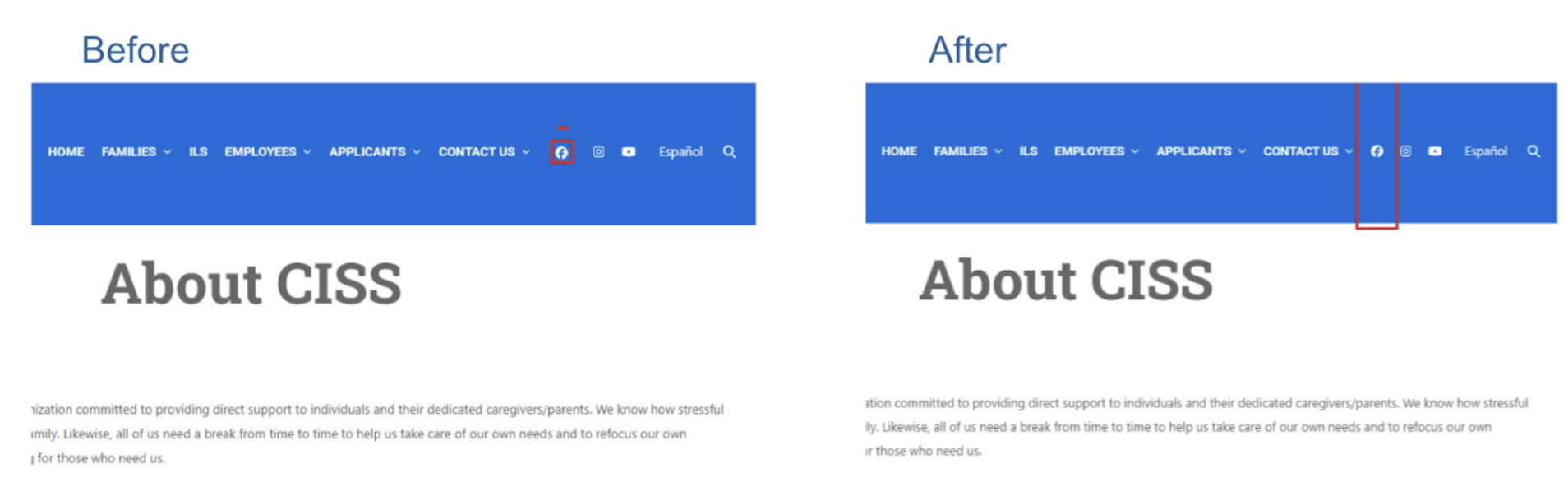
5. Make Buttons Easy to Click

Small buttons and tightly packed links create friction for users with motor disabilities, older users, and anyone on a phone. WCAG guidelines recommend interactive elements be at least 24–44px in both dimensions, with enough spacing between adjacent links that they aren’t accidentally triggered.

A button that looks fine in a mockup can be a tapping nightmare in real life. Worth a check any time you add new calls-to-action.

This improves usability for both desktop and mobile users.

Target size for buttons - ada best practices

6. Label Your Forms Clearly

Forms are one of the most common accessibility failure points — and the issue is almost always the same: placeholder text inside a field used instead of an actual label.

Placeholder text disappears the moment a user starts typing. Anyone who pauses mid-form, or who uses a screen reader, loses all context. Every field needs a persistent, visible label — whether that’s a contact form, checkout page, or newsletter signup.

Related read: If your site handles sensitive data, How to Make Website Forms HIPAA Compliant is worth a look alongside this one.

7. Keep Your Layout Consistent Across Pages

Navigation that changes between pages, shifting headers, and layouts that behave differently in unexpected ways all create disorientation — especially for users with assistive technology who build mental models of how a site works.

This tends to surface when teams create custom landing pages with unique structures, or when multiple people manage different sections of a site. If you have multiple contributors, make sure everyone’s working from the same structural template.

When things move unexpectedly, users can get lost quickly.

8. Don’t Forget About PDFs and Documents

Accessibility doesn’t stop at your website. If your site links to downloadable PDFs or Word docs, those files need to be accessible too. That means using proper heading styles when creating the source document and exporting in a way that preserves structure.

A PDF that’s just a scanned image, or one where headings were faked with bold text, will be unreadable to a screen reader. Review linked documents the same way you’d review a web page.

When uploading documents:

  • Use proper heading styles
  • Structure content clearly
  • Export as accessible PDFs

This ensures all your content—not just your pages—is usable.

Accessibility + SEO + AI Search: Why This Matters More Than Ever

Accessibility best practices don’t just help users—they also help your visibility.

Search engines and AI-powered tools (like ChatGPT, Google AI Overviews, and voice assistants) rely on:

  • Clear structure
  • Meaningful content
  • Well-labeled elements

In other words:

👉 Accessible content is easier to understand—and easier to surface in search results.

If your site is structured properly, it’s not just more inclusive—it’s also more discoverable.

The Bottom Line: Small Changes, Big Impact

You don’t need to overhaul your entire website to improve accessibility.

By consistently applying these small best practices, you can:

  • Improve user experience
  • Reduce risk
  • Support a wider audience
  • Strengthen your SEO and AI visibility

And most importantly—you create a website that works for everyone.

Need Help Keeping Your Site Accessible?

Accessibility can feel overwhelming, especially as your site grows. At NDIC, we help businesses:

  • Audit and improve accessibility
  • Implement best practices the right way
  • Maintain compliance as content evolves

If you’d like a second set of eyes or help implementing any of these updates, we’re here to help.

👉 Contact us today and let’s make your website more accessible, usable, and future-ready.

UX vs UI: What’s the Difference (and Why It Matters)

If you’ve ever nodded along in a meeting when someone said “we need better UX/UI,” you’re not alone. These two terms get bundled together so often they’ve basically become one word.

But here’s the truth: UX and UI are not the same thing. They work together but they solve very different problems.

Let’s break it down in a way that actually makes sense.

First, the Simple Version

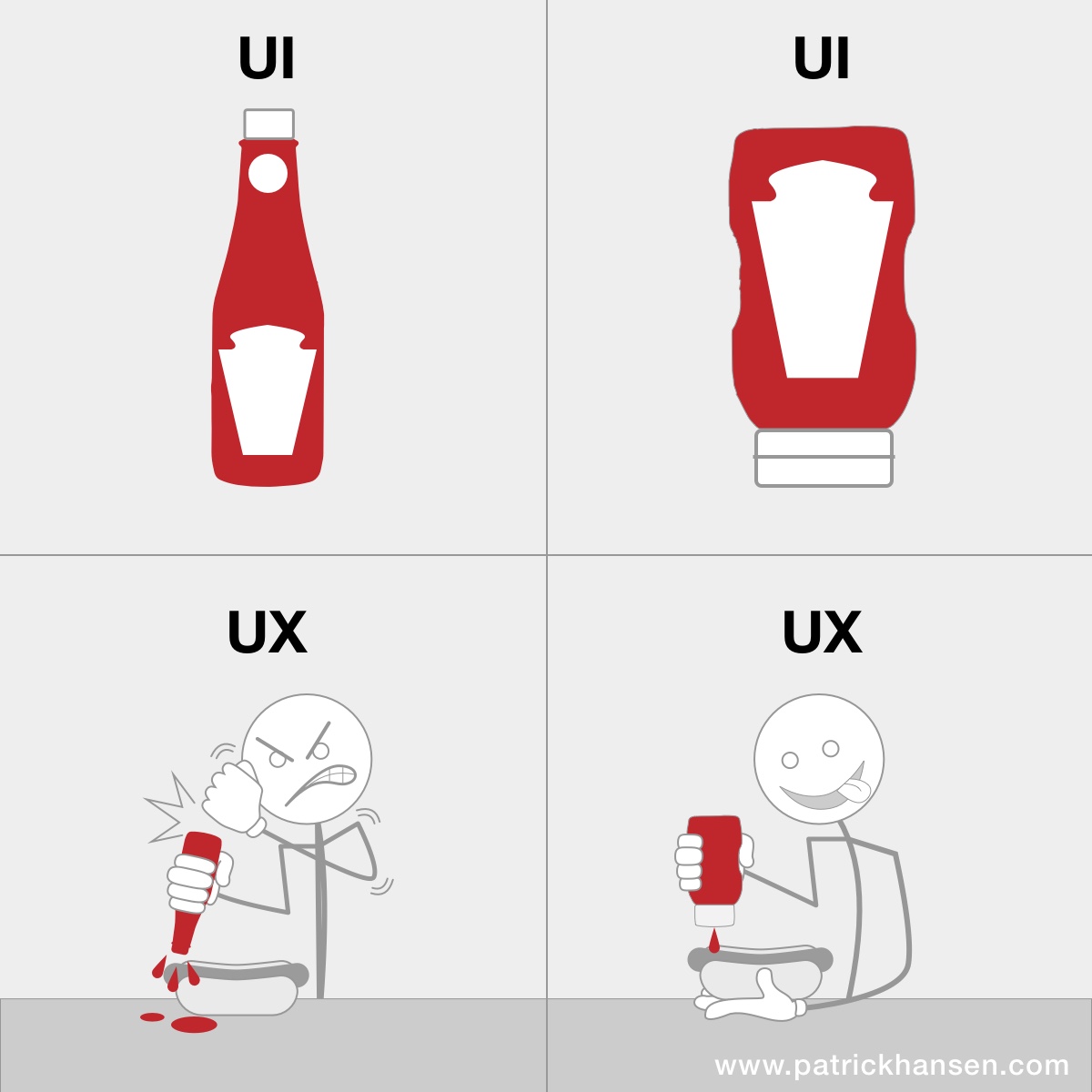
    • UX (User Experience) = How it works
    • UI (User Interface) = How it looks
  • You need both. And when one is off… people notice.

What is UX (User Experience)?

UX is all about the overall experience someone has when using your website.

It’s the behind-the-scenes thinking that answers questions like:

  • Is this easy to use?
  • Can people find what they need quickly?
  • Does the journey make sense?

Good UX feels invisible.
Bad UX feels like trying to open a door that says “pull”… but actually needs a push.

UX in the real world:

  • A checkout process that takes 30 seconds instead of 5 minutes
  • Navigation that makes sense without thinking
  • Forms that don’t feel like a chore

As we’ve covered in our post “Speed Sells”, performance plays a key role in user experience

💡 If users get frustrated, confused, or leave, that is a UX problem.

What is UI (User Interface)?

UI is the visual layer. Everything users see and interact with is the interface.

It includes:

  • Colors
  • Fonts
  • Buttons
  • Layout
  • Spacing
  • Images

UI is what makes your brand feel polished, modern, and trustworthy.

UI in the real world:

  • A clean, modern homepage
  • Buttons that are easy to spot and click
  • Consistent colors and typography

💡 If users say “this looks outdated” or “this feels off,” that is a UI problem.

The Best Way to Think About It

Another way to look at it is to compare it to a house:

  • UX = The layout of the house
    (Do the rooms make sense? Can you get to the kitchen without walking through a closet?)
  • UI = The interior design
    (Are the colors nice? Is the furniture inviting? Does it feel modern?)

You can have:

  • A beautiful house that’s impossible to live in → Great UI, Bad UX
  • A functional house that looks outdated → Great UX, Bad UI

Good UI gets attention and Good UX keeps it.

You might attract visitors with a beautiful design but if they can’t find what they need? They’re gone.

On the flip side, you might have a super functional site but if it looks outdated or clunky? People won’t trust it. And trust is everything online.

The best websites don’t make you think about UX or UI at all.

They just feel… right.

  • You land on the page → it looks great
  • You start clicking → everything makes sense
  • You take action → no friction

That’s UX and UI working together behind the scenes.

A Quick Test for Your Own Site

Ask yourself:

  • Can someone new navigate my site without help? (UX)
  • Does my site feel modern and aligned with my brand? (UI)
  • Is it easy to take the next step—contact, buy, sign up? (UX)
  • Do my buttons, colors, and layout guide users naturally? (UI)

If you hesitated on any of these… there’s opportunity.

Final Thought

UX and UI aren’t competing ideas; they’re partners.

One builds the experience.
The other brings it to life.

And when both are done well?
👉 That’s when websites don’t just look good—they perform.

How to Stop Website Spam and Phishing Emails

Tired of spam? We all are! Spam isn’t just annoying, it can waste time, clutter your inbox, and even expose your business to security risks. If your website forms are getting flooded with fake submissions or your inbox is full of suspicious emails, you’re not alone.

At NDIC, we regularly help clients reduce spam using a practical, layered approach. The goal isn’t just to block spam it’s to do so without hurting the experience for real users.

Here’s how to protect your website and email effectively.

Step 1: Start with reCAPTCHA (Your First Line of Defense)

The simplest and most effective first step is implementing reCAPTCHA on your forms.

This is the familiar “I’m not a robot” checkbox or image challenge that helps distinguish real users from automated bots.

Why it works:

  • Blocks most automated spam instantly
  • Easy to implement
  • Low cost (often free)

Limitations:

  • Doesn’t stop manual spam (real people submitting junk)
  • Adds a small step to the user experience

👉 Still, for most sites, reCAPTCHA eliminates a significant percentage of spam right away.

Step 2: Add Akismet for Smarter Filtering

If your site runs on WordPress, Akismet is one of the most powerful anti-spam tools available.

It works by analyzing the content of form submissions and filtering out anything that looks suspicious.

Why it works:

  • Catches a wide range of spam types
  • Integrates well with tools like Gravity Forms
  • Continuously improves based on global data

Things to keep in mind:

  • Requires a paid subscription
  • Occasionally flags legitimate messages as spam (false positives)

👉 Because of this, it’s important to periodically check your spam folder to ensure you’re not missing real inquiries.

Step 3: Validate Email Addresses in Real Time

Another effective method is verifying whether an email address actually exists before the form is submitted.

Tools like:

  • debounce.io
  • Email validation add-ons for Gravity Forms
  • Other email verification services

…can check if an email is valid without sending a message.

Why it works:

  • Blocks fake or non-existent email addresses
  • Improves lead quality

Limitations:

  • Won’t catch disposable emails
  • Can’t stop all malicious users

Why a Layered Approach Works Best

No single tool will stop all spam. The most effective strategy is to combine multiple methods:

  • reCAPTCHA → blocks bots
  • Akismet → filters suspicious content
  • Email validation → verifies user input

👉 Together, these create a much stronger defense while still allowing real users to interact with your site easily.

How to Spot Phishing and Fake Emails

Spam doesn’t just come through forms, it often arrives via email as well. You can read more on how to identify phishing and suspicious emails in our Knowledge base and here are some examples of how those emails look like.

Suspicious Email

Phishing Email example

Don’t Forget the Human Side of Spam Management

Even with the best tools in place, spam will occasionally get through and sometimes legitimate messages may get flagged.

That’s why it’s important to:

  • Regularly review spam folders
  • Monitor form submissions
  • Adjust filters as needed

👉 Think of spam prevention as an ongoing process, not a one-time fix.

There’s No Perfect Solution, But There Is a Smart One

Just like email inboxes still receive occasional spam, no website form will ever be 100% protected. The key is to reduce spam to a manageable level while maintaining a smooth experience for real users.

By starting with reCAPTCHA, adding intelligent filtering like Akismet, and validating user input, you can dramatically reduce unwanted submissions and improve the quality of your leads.

At NDIC, we help businesses implement the right tools and strategies to keep their websites secure, efficient, and user-friendly.

👉 Contact us today to learn how we can help reduce spam and improve your site’s performance.

Trusted by These Great Companies

Tell us about your website needs - we’d like to hear from you!

What's New

Why Most Companies Are Approaching AI Backwards (And How to Fix It)

Most companies buy an AI tool first and try to fit it into their business afterward. That order rarely works.… more

WooCommerce Caching Done Right: Speed Without Breaking the Cart

Caching is one of the simplest ways to make a website faster, and on a typical WordPress site, the rule… more

Read All