Potpourri
How to – Locate the error_log file in cPanel
- Log in to cPanel.
- Navigate to the “Files” Section.
Once you’re logged in to cPanel, look for the “Files” section. Within the “Files” section, search for and click on the option “File Manager”. This tool will allow you to explore and manage your website’s files.
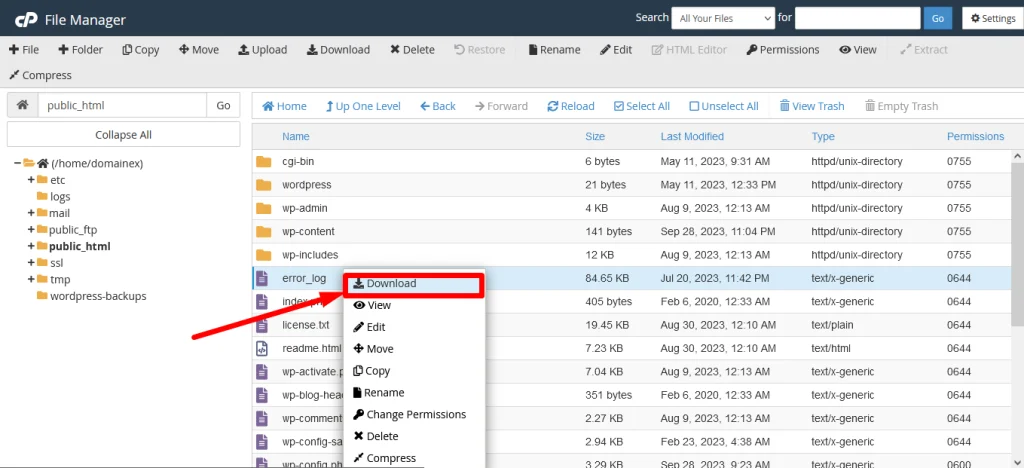
- Once you’re in the “File Manager”, you should access the root directory of your website. The error_log file is typically located in the root directory of the public_html folder.


- View or Download the error_log File.
Once you’ve located the error_log file, you can do the following:View the file: Click on the name of the error_log file to open it and view its contents in a popup window. This will allow you to review server error logs.
Download the file: If you want to save a copy of the error_log file to your local computer, select the file and download it.


