
- Open Mail.
Open Mail on your iPhone.
– Click on “Add Account“.
– Select “Other“.
– Select “Add Mail Account“.

- Add the email account.
In the new window, you must enter the following configuration.Name: (Enter the email address).
Email: (Enter the email address).
Description: (This step is optional).
Host Name: secure.emailsrvr.com
User Name: (Enter the email address).
Password: (Enter the email account password).
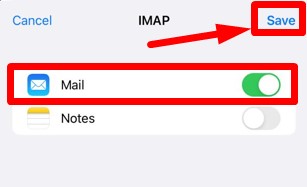
Once you have added the data, a message will appear indicating that the account has been successfully configured, and you only need to click on “Save” to finish and start sending and receiving messages using the Mail program.










Rob Fry,
Sales and Marketing Team Leader