
- Open Mozilla Thunderbird.
Open Mozilla Thunderbird on your computer.- Click on the gear icon to access settings.
– Click on “Account Settings“.
– Click on “Account Actions“.
– Click on “Add Mail Account“.


- Add the email account.
In the Set Up Your Existing Email Address window, input the following information before hitting Configure manually.– Your name: Your name.
– Email Address: (Enter the email address).
– Password: (Enter the email account password).Now click on “Configure manually“.
- Enter the manual configuration.
Enter the IMAP configuration for the incoming and outgoing servers.INCOMING SERVER
Protocol: IMAP
Hostname: secure.emailsrvr.com
Port: 993
Connection security: SSL/TLS
Authentication method: Autodetect
Username: (Enter the email account password)OUTGOING SERVER
Hostname: secure.emailsrvr.com
Port: 465
Connection security: SSL/TLS
Authentication method: Autodetect
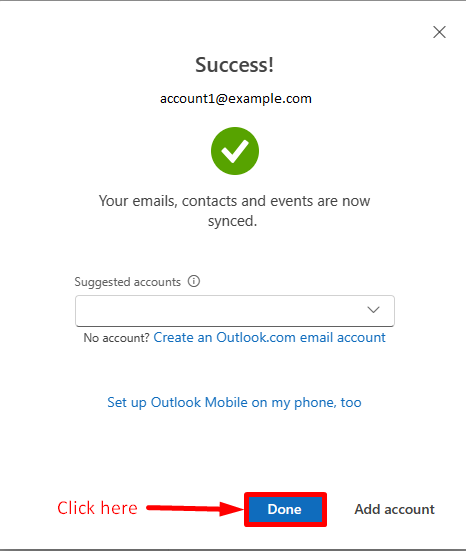
Username: (Enter the email account password)Now click on “Re-test” to test the configuration. After the test is completed, a green message will appear indicating that the settings are correct. To finish, click on “Done“, and you will have your email account configured in Thunderbird to send and receive email messages.











Rob Fry,
Sales and Marketing Team Leader